
No app store needed
Install ClearToEnter on your phone or computer
ClearToEnter installs straight from this website, so there is nothing to find in an app store. Once installed, it opens from your home screen like the other apps on your phone. You can also save the free tools on your device, so they keep working when you have no signal.
Last reviewed:
How do you install it?
On most phones and computers, one tap on the button below installs it. iPhone and iPad have no button, so their short steps show here instead.
Checking what this browser can do.
Not seeing the button? Steps for every device
- Safari on iPhone
- Open cleartoenter.ca in Safari.
- Tap the More button, then Share. If your tabs layout is Bottom or Top, tap the Share button instead. On iOS 27 the More button is called Page Menu.
- Scroll down the list and tap Add to Home Screen. If it is missing, tap Edit Actions at the bottom of the list and add it.
- Turn on Open as Web App, then tap Add.
- Safari on iPad
- Open cleartoenter.ca in Safari.
- Tap the Share button, tap View More, then tap Add to Home Screen.
- Turn on Open as Web App, then tap Add.
- Android phone or tablet
- Open cleartoenter.ca in Chrome.
- At the right of the address bar, tap More, then Install and create shortcut, then Install.
- Follow the steps on the screen.
Samsung Internet has its own menu. Open it and choose the option that adds this page to your Home screen.
- Computer
- Chrome: select Install at the right end of the address bar. If it is not there, select More, then Cast, save, and share, then Install page as app.
- Microsoft Edge: accept the install prompt Edge shows, or select Settings and more, then More tools, then Apps, then Install this site as an app.
- Safari on a Mac: click the Share button in the toolbar, choose Add to Dock, then click Add.
Once it is installed, a long press on the ClearToEnter icon on Android, or a right-click on it on a computer, offers shortcuts to the CRS Calculator, the Visa Checker and the law search. iPhone and iPad do not show these shortcuts.
How do you save the tools for use without a signal?
One button saves every free tool, the document checklists included, in English and in French. After that, the tools open and run on this device with no connection.
Exchange rates still need a signal: the Currency Converter, and the fee and funds calculators when you choose a currency other than the Canadian dollar, fetch the day’s rates from the site.
Save the free tools for offline use
Saves every page in the Free tools menu, the document checklists included, in English and French: 36 pages.
The pages are kept in this browser’s storage on this device. You can remove them here or on Your workspace page.
Saved pages update themselves when you open ClearToEnter with a connection, at most every 12 hours. Currency conversions need a connection.
Checking what is saved on this device...
Can you save a guide or a law section?
Yes. Every guide and every law section has a Save this page button. A saved page opens on this device without a signal, and it is listed on Your workspace.
How does a saved page stay up to date?
Rules change, so a saved copy is there for the times you have no signal.
With a connection
Every page loads fresh from the site, whether you saved it or not.
Without a signal
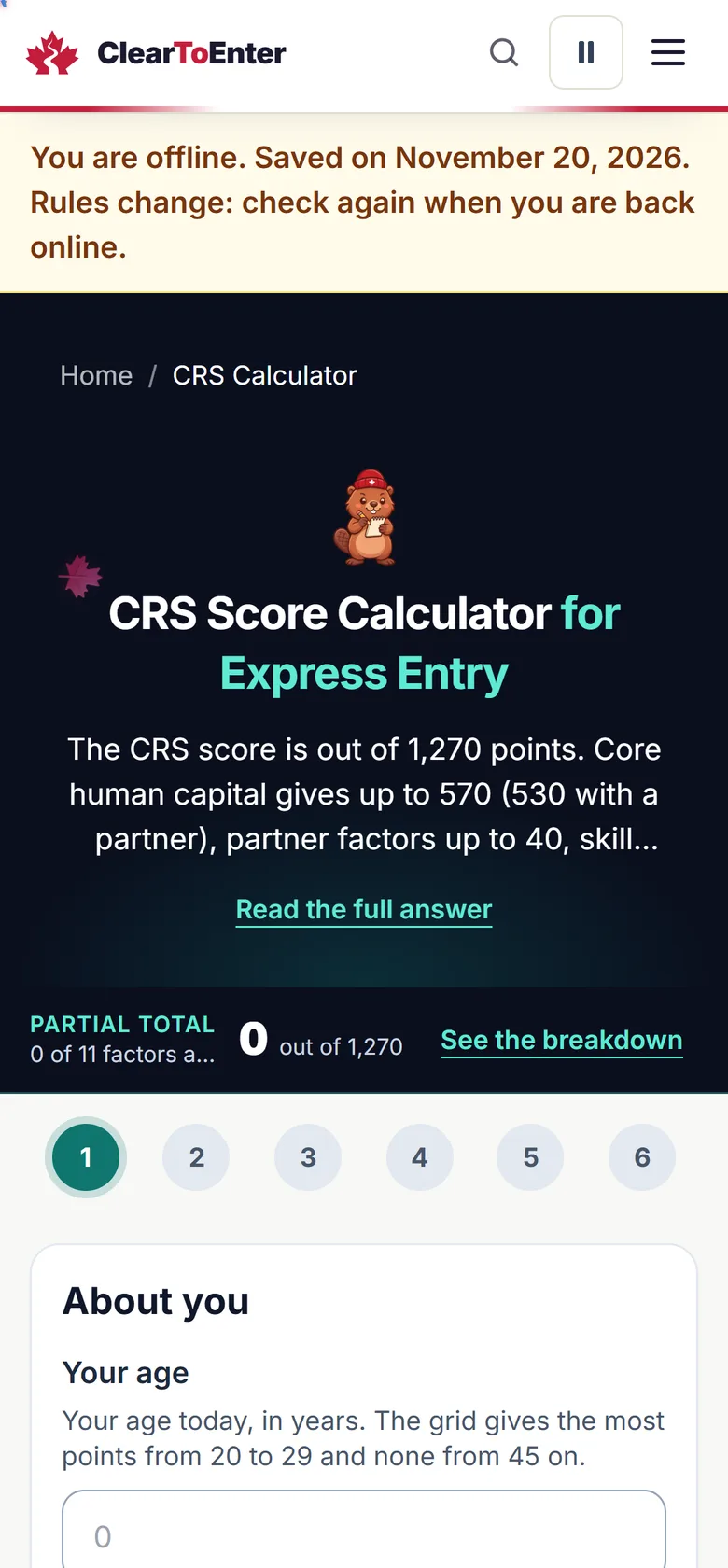
The saved copy opens. A line at the top says you are offline, gives the day the page was saved, and asks you to check again once you are back online.
When the signal returns
Saved pages refresh themselves when you are back online, so the copy you keep stays close to the live page.
What is stored when you save a page?
Saved pages and the tool pack are kept in your browser’s own storage, on this device. Saving a page asks the site for that page, the same request your browser makes when you open it. No list of what you saved is sent, and the site asks for no name or account.
Kept on this device
- The pages you saved, with the day each one was saved
- The tool pack if you saved it
- Entries the tools already keep there
Not sent to us
- A list of the pages you saved
- Anything you type into a tool
- Your name or email address
Clear everything on Your workspace removes saved pages from this browser, with everything else ClearToEnter keeps there. The privacy policy has the full list.
How do you remove it?
To erase saved pages too, press Clear everything on Your workspace before you remove the icon.
- iPhone and iPad
- Touch and hold the ClearToEnter icon on the Home Screen, tap Remove App, then confirm.
- Android
- Open Settings, then Apps, then See all apps. Tap ClearToEnter, then Uninstall.
- Chrome on a computer
- Open the installed ClearToEnter window, select More at the top right, then Uninstall ClearToEnter, then Remove.
- Microsoft Edge
- Go to edge://apps, select Details on the ClearToEnter card, then Uninstall.
- Safari on a Mac
- Delete the ClearToEnter web app the way you delete any other app on your Mac.
Questions about installing
Is ClearToEnter in the App Store or Google Play?
No. ClearToEnter installs straight from this website, with no app store needed. You will not find it in either store.
Does it cost anything?
No. Installing is free, the free tools stay free, and saving pages costs nothing.
Does it track me?
Installing adds no tracking. The installed site works like the website: Google Analytics counts page views, and saved pages stay on your device. What you type into a tool is not sent to us.
How much space does it use?
It depends on what you save. The tool pack takes the most room, about 19 MB, and each guide or law section you save adds one page. Your browser’s settings for this site show how much space it uses.
Why does my iPhone not offer to install it?
Safari on iPhone and iPad does not show install prompts for websites. You add ClearToEnter yourself: tap Share, then Add to Home Screen, then Add.
Will saved pages go out of date?
With a connection, every page loads fresh. A saved copy opens only when you have no signal, shows the day it was saved, and refreshes itself once you are back online. Rules change, so check again when you can.